Global Side Menu Width
Placeholder

Building A Brand

You are here:

Learning Intention:

By the end of this lesson, students will be able to select an appropriate colour scheme and apply it to modify a basic Bootstrap Template to effectively build a brand identity.

Success Criteria:

Students can:

  • Identify a colour scheme that aligns with their brand identity.
  • Modify a Bootstrap template by integrating the selected colour scheme.
  • Demonstrate how the colour scheme enhanced the brand’s overall design.

Selecting Colours

A crucial guideline for applying colour in User Interface designs is to achieve a balanced and mature aesthetic. The video below discusses a format which allows us to really focus on bringing the colours to

There are many methods for selecting colours for a brand or user interface design. No matter which method you use, consistency is the most important. I have always focused on using a simple approach which uses four colours and two fonts in my designs.

The four colours I always look to use come from the following four categories:

1. A dark colour
2. A light colour
3. A feature colour
4. A white colour

Now I know the white colour thing is a little weird because it would be very simple to default that one to white (#FFFFFF) and to default the dark colour to black (#000000), but this is where choice is important. Sometimes a brand might be looking for a off-white or beige colour as their white colour rather than “white” white and again a brand might look to use a dark colour in place of black. I’ve always found that so long as the dark colour is very dark, and the white colour is trending towards white, you’re in the clear.

Now, how do we make choices on the colours? I use this tool: COOLORS


Basically it gives us a really quick way to select colours and test to see how well the work together. If you sign up to a free account, it even allows you to save colour schemes to your account and this makes it a great place for storing that information if you end up working for multiple brands.

Once you start the generator you get a page that looks like this (it will be different as the initial colours are random).

The first thing I do is remove the fifth colour. From there you can press SPACE and it will cycle through new colours. If you see colours you like, click the lock icon on that colour to keep it saved and then you can keep generating more colours from there. Once you have a colour locked in that you like, you can modify the shade (darker – ‘adding black’) or tint (lighter – ‘adding white’) if you wanted it to be a little darker or lighter.

Remember that we want a dark, light, feature and white locked in to move forward. One example could be what you see below that uses a ‘blue’ scheme.

As you can see, in this instance, the dark colour (Licorice) is not black, the white colour (Alice Blue) is not white and the feature (Lapis Lazuli) and light (Xanthous) colours are complementary – but that’s from colour theory and a whole different topic!

There are many approaches to selecting colours for branding. I like using Coolors as the random nature allows me to consider colours I otherwise wouldn’t have. There are other similiar tools like Adobe Color which allows you to look at community generated colour schemes, but that can be a little harder to access as you need to have an Adobe account to access it.

Another approach is explained below in this YouTube video, the 60/30/10 approach which simplifies colour design a little further.

This approach recommends using a neutral or base colour for 60% of the design, a primary colour for 30% of the design and a accent or secondary colour for 10% of the design which is generally used for call-to-action sections and used sparingly.

The flexibility of this scheme is that it allows designers to adjust the colour scheme based on their specific needs, such as using brighter colours or adapting to darker interfaces.

Thinking about Accessibility

The next thing we need to consider when selecting colour schemes for our User Interfaces is how the colour contrast ratios effect accessibility for those users that might have some form of visual impairement. The simplest tool to use here is one published by Web Accessibility In Mind (WEBAIM). Their Colour Contrast Checker is my go-to tool for this. Very simple to use, just input the foreground and background colours and it will give you an idea of the ratio and whether or not it passes 5 standards.

If you find that your colours vastly miss the mark, it would be heavily recommended that you go back to Coolors and make some changes. Sometimes it is as easy as just changing to a darker shade.

Using my colour scheme from before we have the following ratios:

Now what is interesting here is that you not only get a preview of how the colours will look together when used as normal text, but also how they will appear on some user interface elements. Ideally, what we’re looking for here is that we can see the two colours selected passing all 5 standards. To really simplify what each of them means, grab a section from their website explanation:

1. Large text is defined as bold text that is 14pt or larger, or standard weight which is 18pt or larger.
2. WCAG AA requires a colour contrast ratio of 4.5:1 for normal text, 3:1 for large text and graphical user interface components.
3. WCAG AAA requires colour contrast ratios of 7:1 for normal text and 4.5:1 for large text.
(Contrast checker (no date) WebAIM. Available at: https://webaim.org/resources/contrastchecker/ (Accessed: 03 September 2024).)

The idea behind these colour contrast ratios is to ensure those with colour blindness or another form of visual impairment are able to easily access the content. As the designer you need to make a choice about how you apply these standards in your designs. My recommendation would be to always work towards meeting the WCAG AAA standard for normal text with colour combinations where possible as this will mean your design is always the most accessible.

Example:

Above we can four different versions of the colour contrast ratio with the colour scheme quickly made as an example. We can see that the Licorice on the Alice Blue (‘Black’ on ‘White’) passes all of the standards (as does the Black on Yellow) which means we know we’re safe to use this combination on all areas of our design. The Lapis Lazuli on Alice Blue however does not pass the normal text standard at AAA level. This means that I could make the choice to use this combination for things like headings or large buttons to have a little point of difference between the Black and White. The one combination that needs to be carefully used (if at all) is the blue on yellow. This combination could be used for buttons or user interface components, but should be avoided for text in general.

Modifying Bootstrap

Now that we have a colour scheme locked in, let’s have a look at practically applying it to a pre-made Bootstrap site. I got ChatGPT to generate me some quick code for a sample site, its nothing special, but it already includes Bootstrap’s CSS and JS files along with a small navbar and some content. It gives us enough to work with.

Start by downloading the base code files available from my GitHub repository for Unit 1 (Unit 1 Repository). The files you’re looking for are called:

BuildingABrand-Base.html & BuildABrandCSS-Base.css

Once you have both files it might be useful to save them into the same folder and open that folder in Visual Studio Code. Completed files are also available, they will be named final.


/* Define CSS Variables */
:root {
--light: #005CA3;
--bright: #F4B942;
--white: #EBF6FF;
--dark: #1E0B0E;
}

Specifically what you can see above is an example of how we can define variables in a CSS file. Personally, I like doing things this way as it means I don’t have to remember the specific colour codes. I’ve also set the names of the variables as the same terms I used earlier in the colour selection section of the lesson. This means that throughout the CSS file, whenever I want to use these colours in my design, I can just use their names.


  .navbar {
background-color: var(--white);
}
.btn-primary {
background-color: var(--light);
border-color: var(--white);
}

For example, you can see in the two sections above, I’m able to set the background colour of the navbar class to my “Alice Blue” colour which is my white quickly by using the var(–white) code as it’s colour. Again in the btn-primary class, I can set the background of the buttons to the Lapis Lazuli (darker blue) colour with the “Alice Blue” colour being selected as the text colour on this primary button style.

The HTML

Now its over the the HTML files. By default we somewhat need to set up Bootstrap sites in a specific way. I’ve always used their Content Delivery Network (CDN) to ‘import’ their content into my sites. This means we need two pieces of code.


<link href="https://cdn.jsdelivr.net/npm/bootstrap@5.3.3/dist/css/bootstrap.min.css" rel="stylesheet" integrity="sha384-QWTKZyjpPEjISv5WaRU9OFeRpok6YctnYmDr5pNlyT2bRjXh0JMhjY6hW+ALEwIH" crossorigin="anonymous">
<script src="https://cdn.jsdelivr.net/npm/bootstrap@5.3.3/dist/js/bootstrap.bundle.min.js" integrity="sha384-YvpcrYf0tY3lHB60NNkmXc5s9fDVZLESaAA55NDzOxhy9GkcIdslK1eN7N6jIeHz" crossorigin="anonymous"></script>

Mark Otto, J.T. (no date) Bootstrap, Bootstrap · The most popular HTML, CSS, and JS library in the world. Available at: https://getbootstrap.com/ (Accessed: 04 September 2024).

The code that you see above is the couple of files we need to import. On line 1 you can see a CSS file which we would normally link to in our Head tag. The JS file is normally added to the very end of the body tag. In the BuildABrand-Base.html file, we need to start modifying some code. Ideally, this is done quickly and easily which is why we need to link to our other CSS file. This has already been done for you, so as long as the HTML and CSS files from GitHub have been saved into the same folder, the files should link.

As we modify the code, we need to first of all identify where the different CSS classes have been applied from the Bootstrap default ones, sometimes this means we can just delete the reference to the default CSS class, other times we can modify our own custom CSS file to include a class name that is the same. Let’s have a look at one example:


<head>
<meta charset="UTF-8">
<meta name="viewport" content="width=device-width, initial-scale=1.0">
<title>My Brand</title>
<!-- Bootstrap CSS -->
<link href="https://cdn.jsdelivr.net/npm/bootstrap@5.3.0/dist/css/bootstrap.min.css" rel="stylesheet">
<!-- Custom CSS -->
<link href="BuildingABrandCSS-Base.css" rel="stylesheet">
</head>
<body>
<!-- Navbar -->
<nav class="navbar navbar-expand-lg navbar-dark bg-primary">
<div class="container-fluid">
<a class="navbar-brand" href="#">My Brand</a>
<button class="navbar-toggler" type="button" data-bs-toggle="collapse" data-bs-target="#navbarNav" 
aria-controls="navbarNav" aria-expanded="false" aria-label="Toggle navigation">
<span class="navbar-toggler-icon"></span>
</button>

This code appears at the beginning of the body tag. On Line 12, there are a couple of classes that Bootstrap has built in which we can remove. If we remove the navbar-dark and bg-primary classes, the code will then be able to change the way the navigation bar looks. Bootstrap also has a navbar class, but in our custom CSS file (BuildABrand-Base.css) we also have a navbar class but because it is referenced after the Bootstrap file (see Lines 6 and 8), it means that any attributes that appear in both files, the web browser will apply the ones from our file. Now in our CSS file (below), we can edit the different colours of the navbar class. Your job is to build the page so that it looks like the example below the CSS code.


/* Define CSS Variables */
:root {
--light: #005CA3;
--bright: #F4B942;
--white: #EBF6FF;
--dark: #1E0B0E;
}
/* Use variables in styles */
body {
font-family: 'Arial', sans-serif;
}
.navbar {
background-color: var(--white);
color: 
}

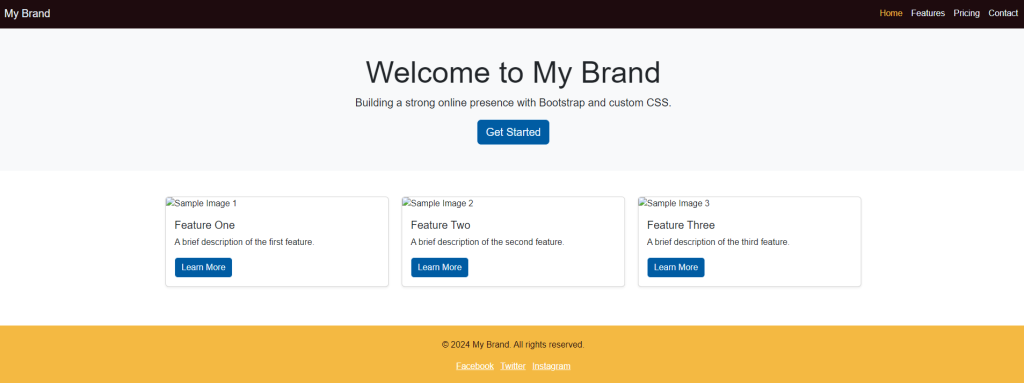
The final version of the code's output:

So its over to you now. Your job is to start by looking at the start of the HTML code and beginning to work through making changes so that the output looks exactly the same as what is below. Specifically looking to change the navigation bar at the top and the footer at the bottom. So other places you might look to make some changes are in the middle section in the ‘Jumbotron’ and the cards that appear next to each other.